


Previously, I shared a useful change to Excel’s Create Table dialog: you can give your table a name while creating it.
For CPAs working through month-end reports, vendor invoices, or client schedules, a meaningful table name can make a workbook easier to follow and review.
But what if your version of Excel doesn’t show that new name field yet?
You can still name your table. The familiar Table Design tab already gives you a place to do it.
This is Part 2 of Ctrl+T got an upgrade. Name that table! Let’s look at the option you can use today and why that small naming habit is worth practicing.
Name your table through Table Design
- Click anywhere inside your existing Excel table. If your data is still a regular range, create a table first with Ctrl + T in Windows or Insert → Table. Check the range and whether it has headers.
- Open the Table Design tab that appears when you select the table.
- Look in the upper-left corner of the ribbon, in the Properties group, for the Table Name box.
- Replace the default name, such as Table1, with something descriptive, such as VendorInvoices.
- Press Enter.
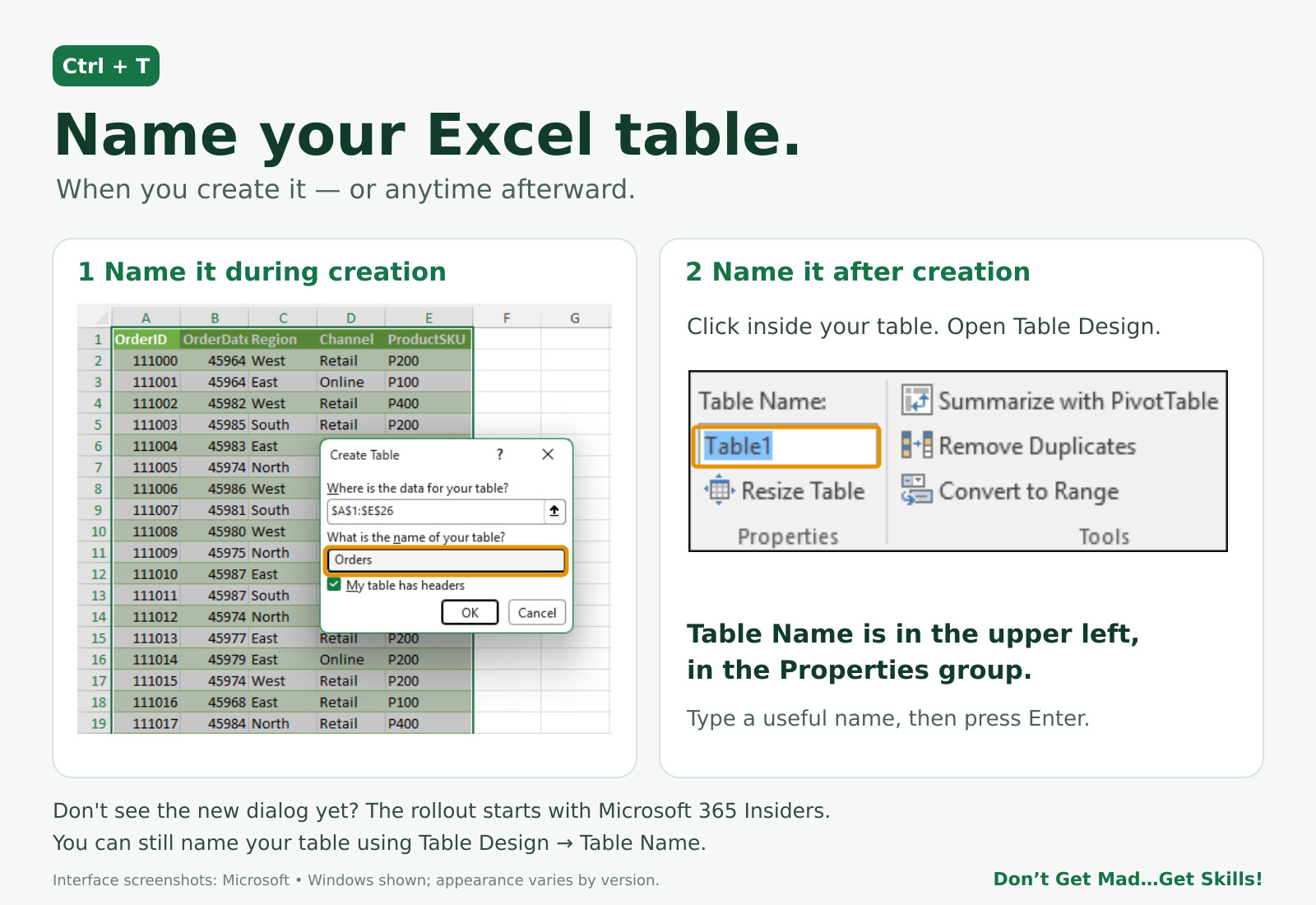
On Mac, use the Table tab to find the table name. The ribbon’s appearance may vary by version.
Use a unique name within the workbook. Leave out spaces, or separate words with underscores. VendorInvoices and Vendor_Invoices are both workable styles. Start with a letter to keep the convention straightforward, and avoid names that look like cell references.
Why a useful name matters in a formula
Table1 is a valid name, but it doesn’t tell you much about the data. VendorInvoices gives you a clue before you even inspect the rows.
Imagine a table of vendor invoices with a numeric column named InvoiceAmount. Compare these formulas:
=SUM(Table1[InvoiceAmount])
=SUM(VendorInvoices[InvoiceAmount])
Both examples total the InvoiceAmount column in the referenced table. The second makes the source easier to recognize. You can read it as: “Add the InvoiceAmount values from VendorInvoices.”
That combination of a table name and column name is a structured reference. VendorInvoices identifies the table; InvoiceAmount identifies its column.
The benefit becomes clearer as formulas grow
Suppose the same table also has a Department column. To total invoice amounts assigned to Accounting, an example would be:
=SUMIFS(VendorInvoices[InvoiceAmount],VendorInvoices[Department],"Accounting")
The names help you follow the logic: add InvoiceAmount from VendorInvoices where Department equals Accounting. The example assumes those exact table and column names. Your own formula must match the names in your workbook.
This becomes especially helpful when you revisit a client workbook at the next month-end or hand a schedule to another accountant for review. Names such as VendorInvoices, PayrollDetail, and ClientBilling give the reviewer more context than Table1, Table2, and Table3.
A clear name still needs an accurate calculation behind it. Check that the table covers the intended rows and reporting period, confirm the headings, and reconcile the total to the relevant source report. Clear names support review; they don’t replace those checks.
A small practice challenge
Open a copy of a workbook. Name one table after what each row represents: VendorInvoices, PayrollDetail, or ClientBilling, for example. Then write or review a formula that uses one of its columns.
Would the name help someone opening the workbook for the first time? If so, you’ve made a useful improvement.
Don’t see the new Create Table name field yet? It’s rolling out gradually, starting with Microsoft 365 Insiders. Availability depends on your version and update channel. In the meantime, you can use Table Design to build the same naming habit.
Small habit. Clearer workbook.
Ready to make your formulas easier to follow and review? In my LearnFormula course, Excel Tables: Manage and Analyze Data Like a Pro, head to the Using Structured References section. Start with Structured References Demystified: A Beginner’s Guide, where I explain how table names, column names, and item specifiers make formulas easier to read. Then put the technique to work in your next accounting workbook.
Don’t Get Mad…Get Skills! 🤙